

Upload your herds into the Livestoq App with our Livestoq-approved spreadsheet. To watch the video tutorial, scroll to the bottom!
Getting Started
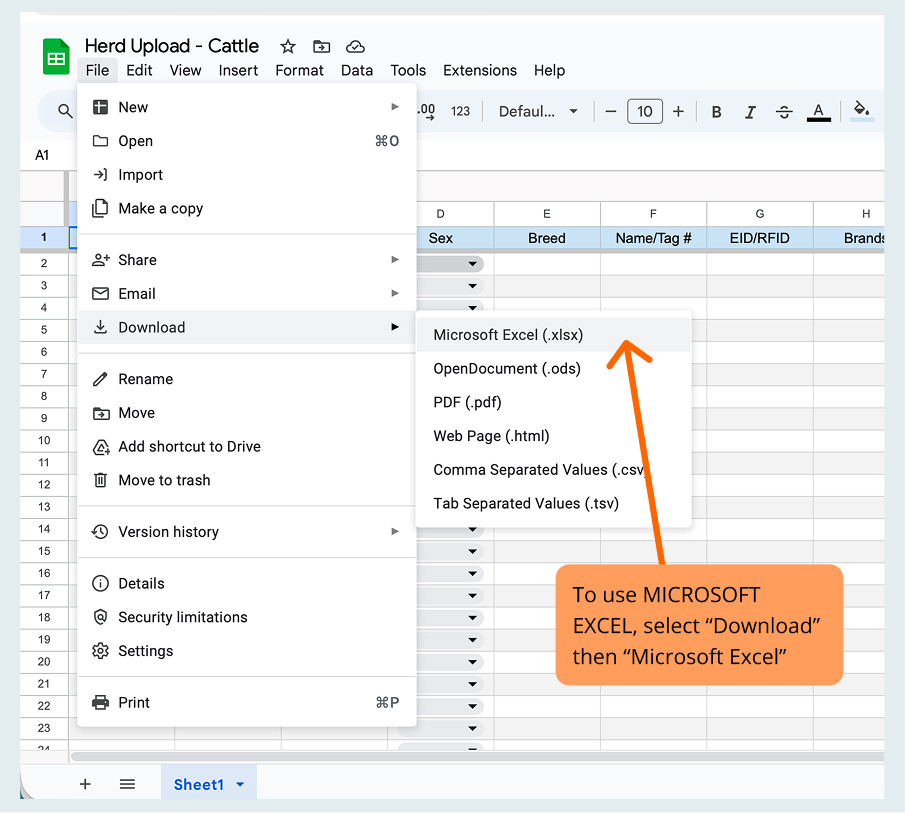
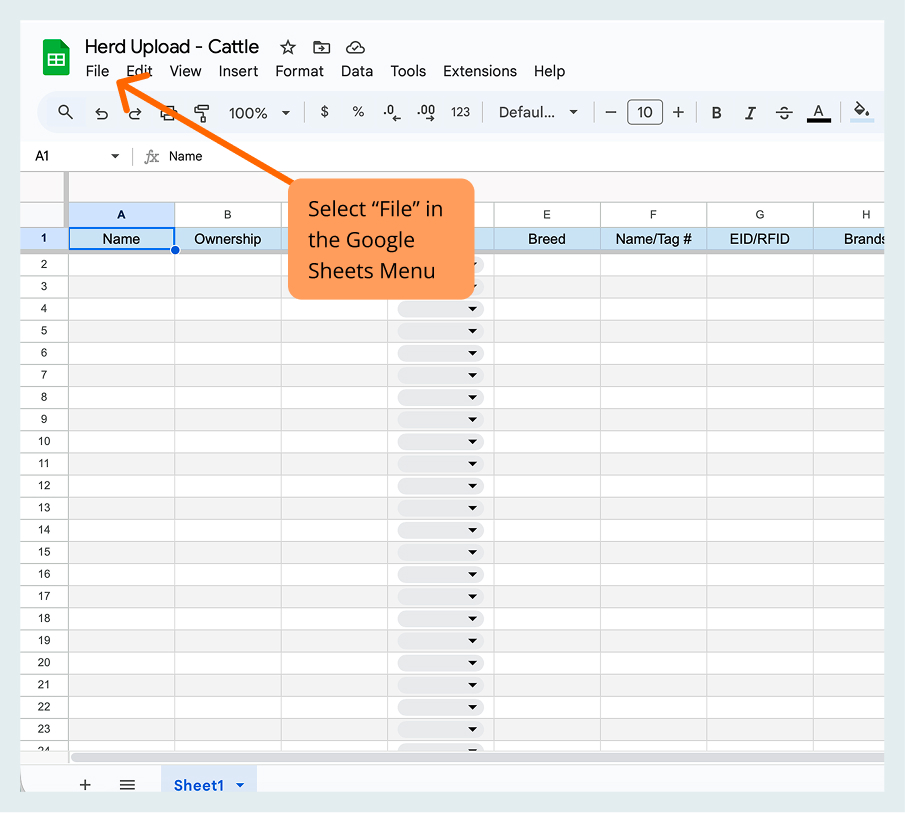
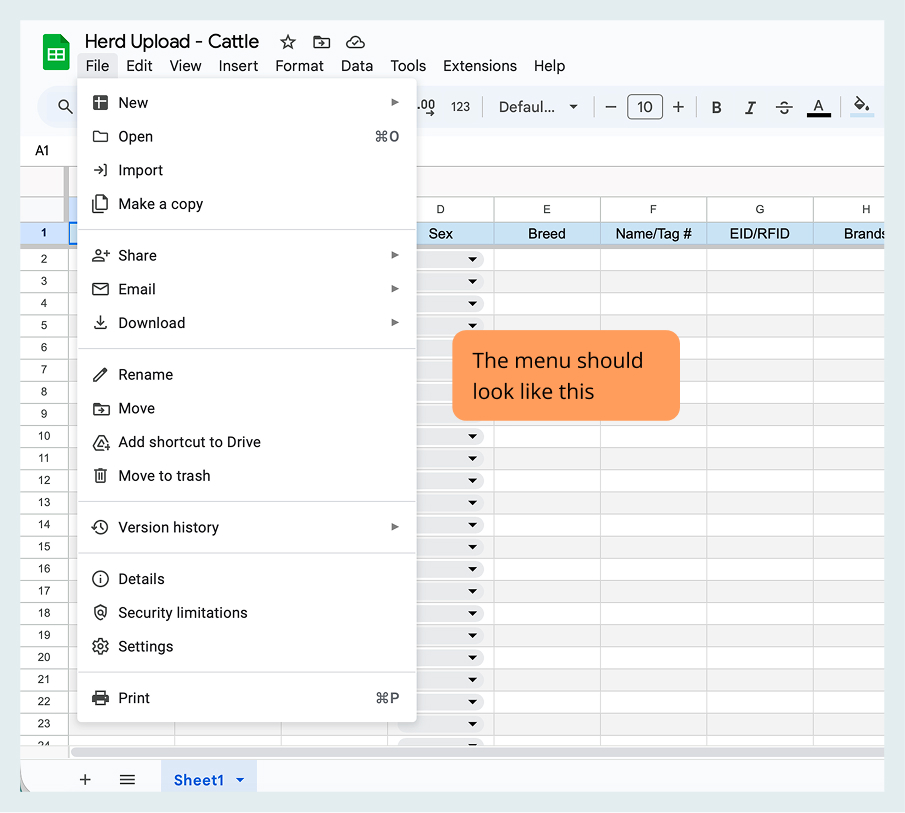
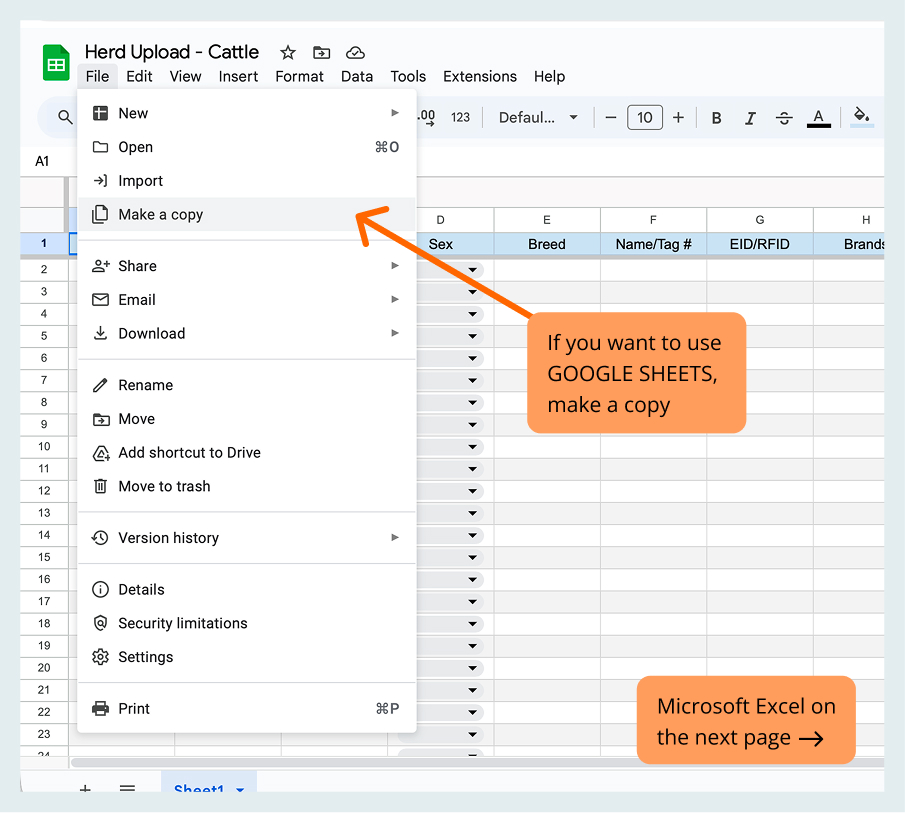
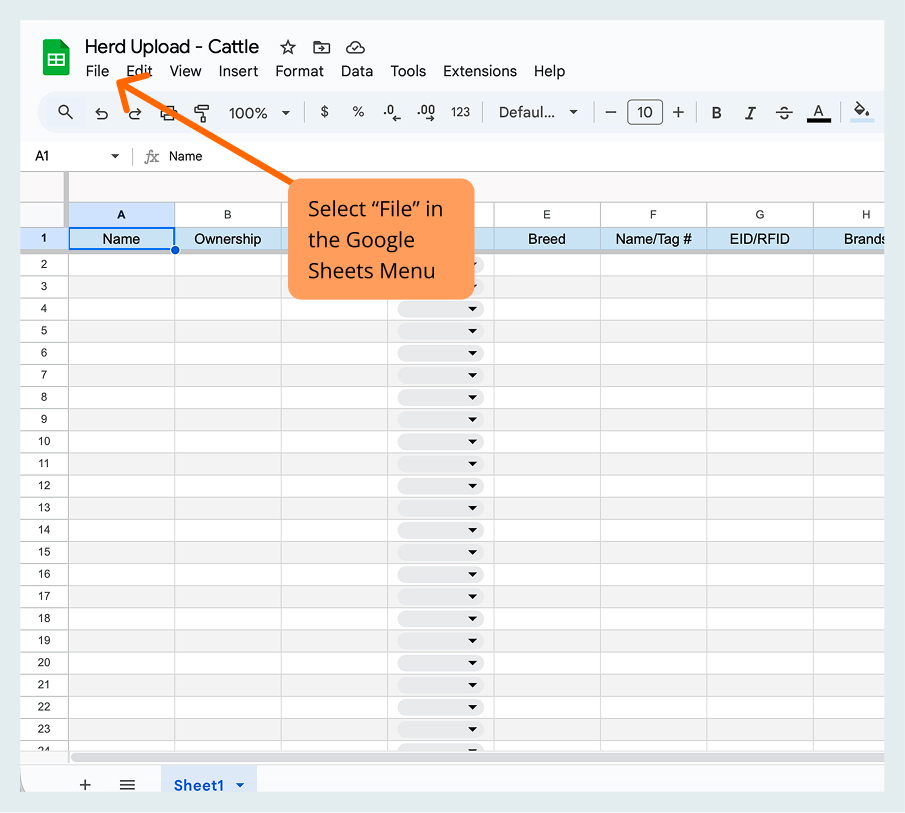
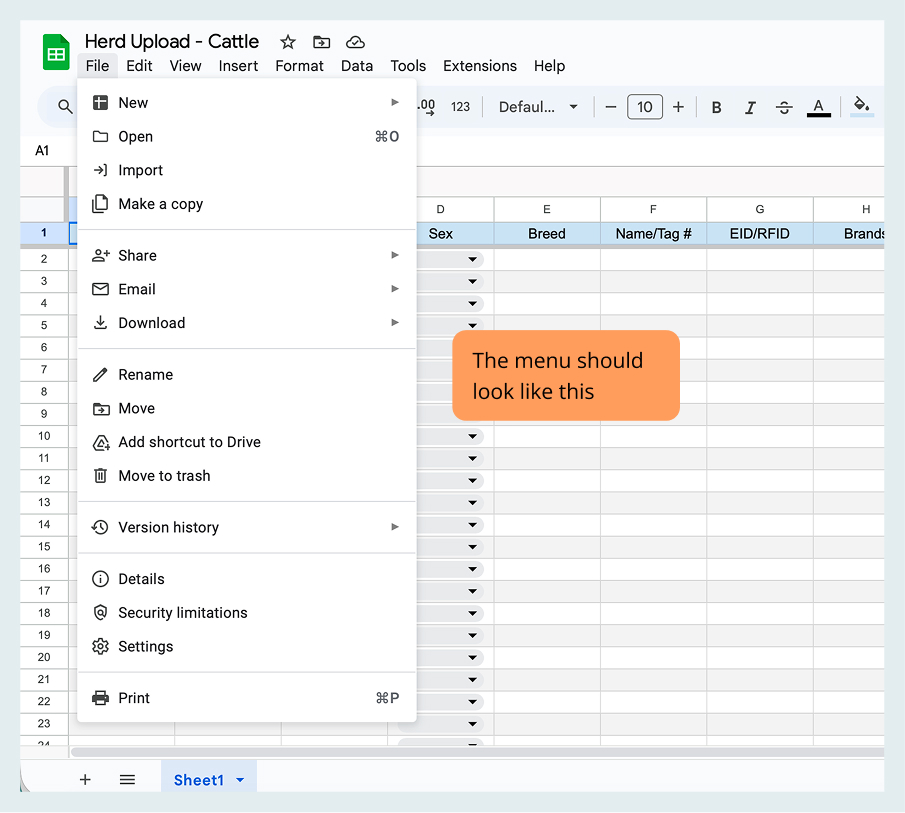
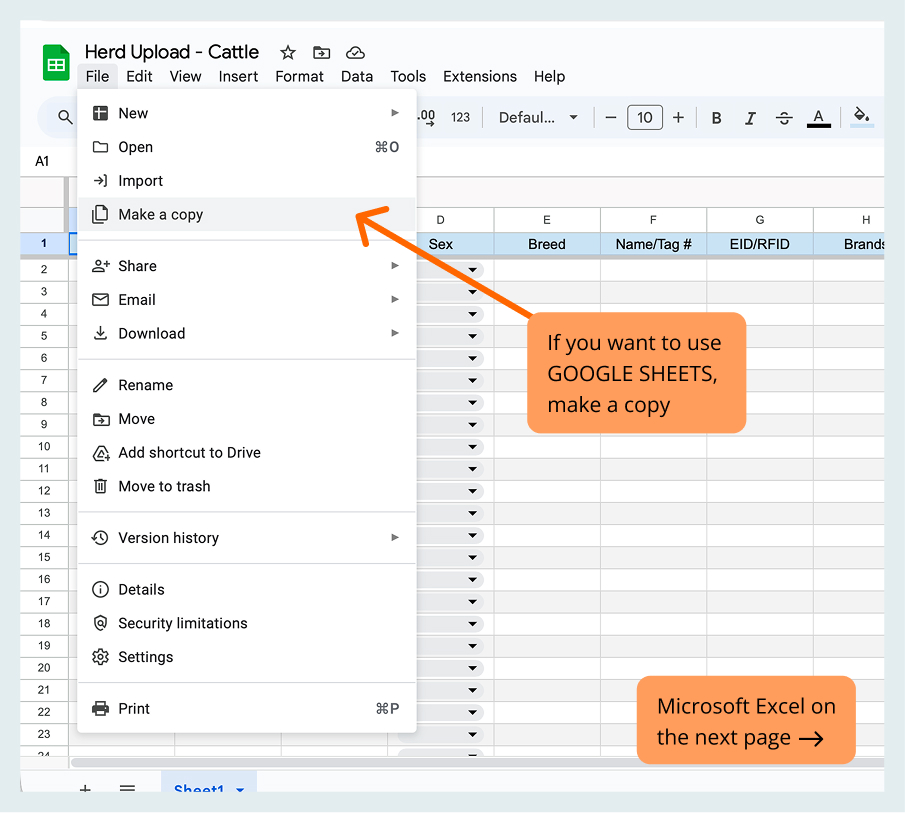
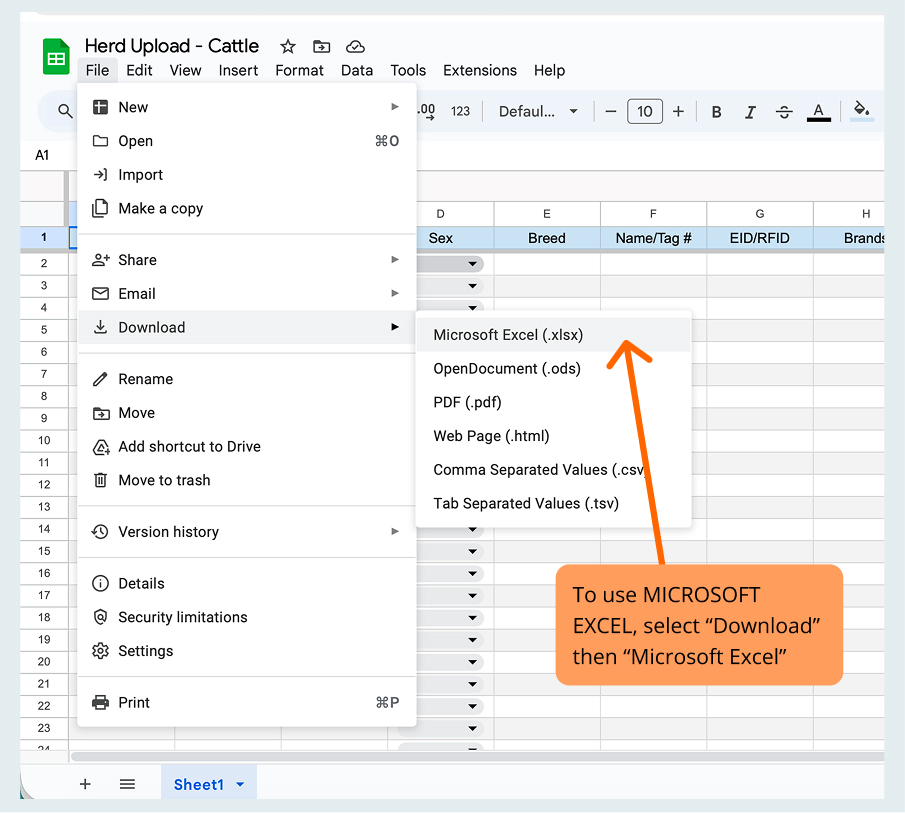
Begin by selecting a spreadsheet (or multiple spreadsheets) below, then choose to download it or make a copy. See instructions on how to access spreadsheets below.
Fill Out Your Spreadsheet
Open the spreadsheet and fill in the information. Just a heads-up, please don’t add any new columns, since our app only reads the original format.
Your Completed Spreadsheet
Once you’ve filled everything out, save or download your spreadsheet as a CSV.
Transfer the File to Your Phone
Transfer your completed spreadsheet(s) to your phone. You can use AirDrop, or if you’re not sure how to save a file to your phone, here’s an easy way: email the file to yourself, open the email on your phone, then download and save it to your Files, Downloads, etc.
Upload to the App
Open the app and make sure you’re on your Herds. Tap the + button, select Upload, and then follow the on-screen instructions.
Finish Upload & Verify
Once you’re finished, double-check that everything looks right! If you add anything outside the designated columns, the upload won’t work, so be sure to only fill in the columns provided.

If you’re still confused on how to upload to the app, send us a message at [email protected] or via Facebook/Instagram DM and we’ll set up some time to chat with you!
We know this isn’t the most thrilling video but it should help!
Tip: You only need to fill out the columns that you have info for, otherwise leave them blank



Keep Updated with Livestoq
Hear about updates, new features, events and more.

© Copyright 2026. Livestoq. All rights reserved.